
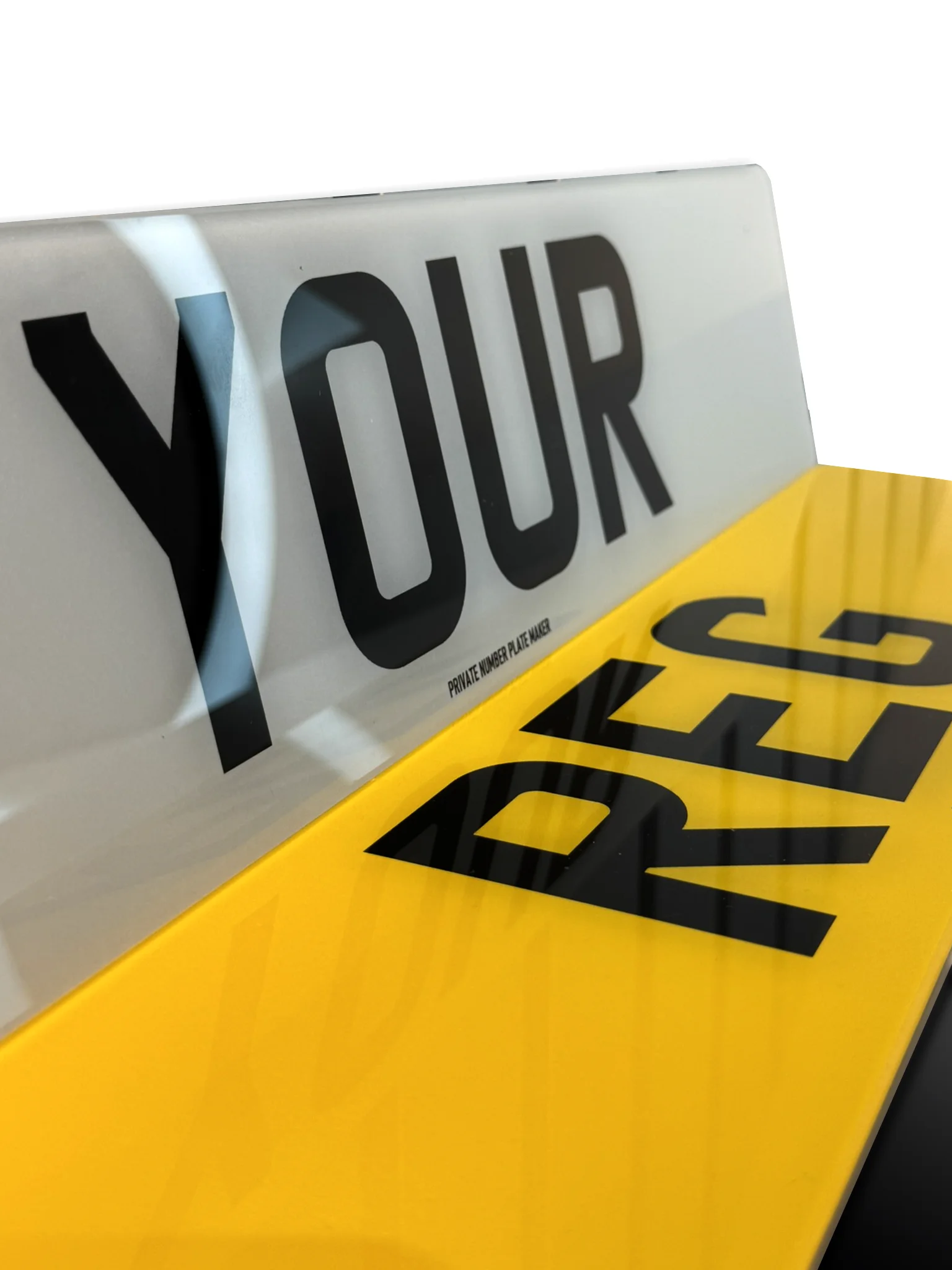
 Printed
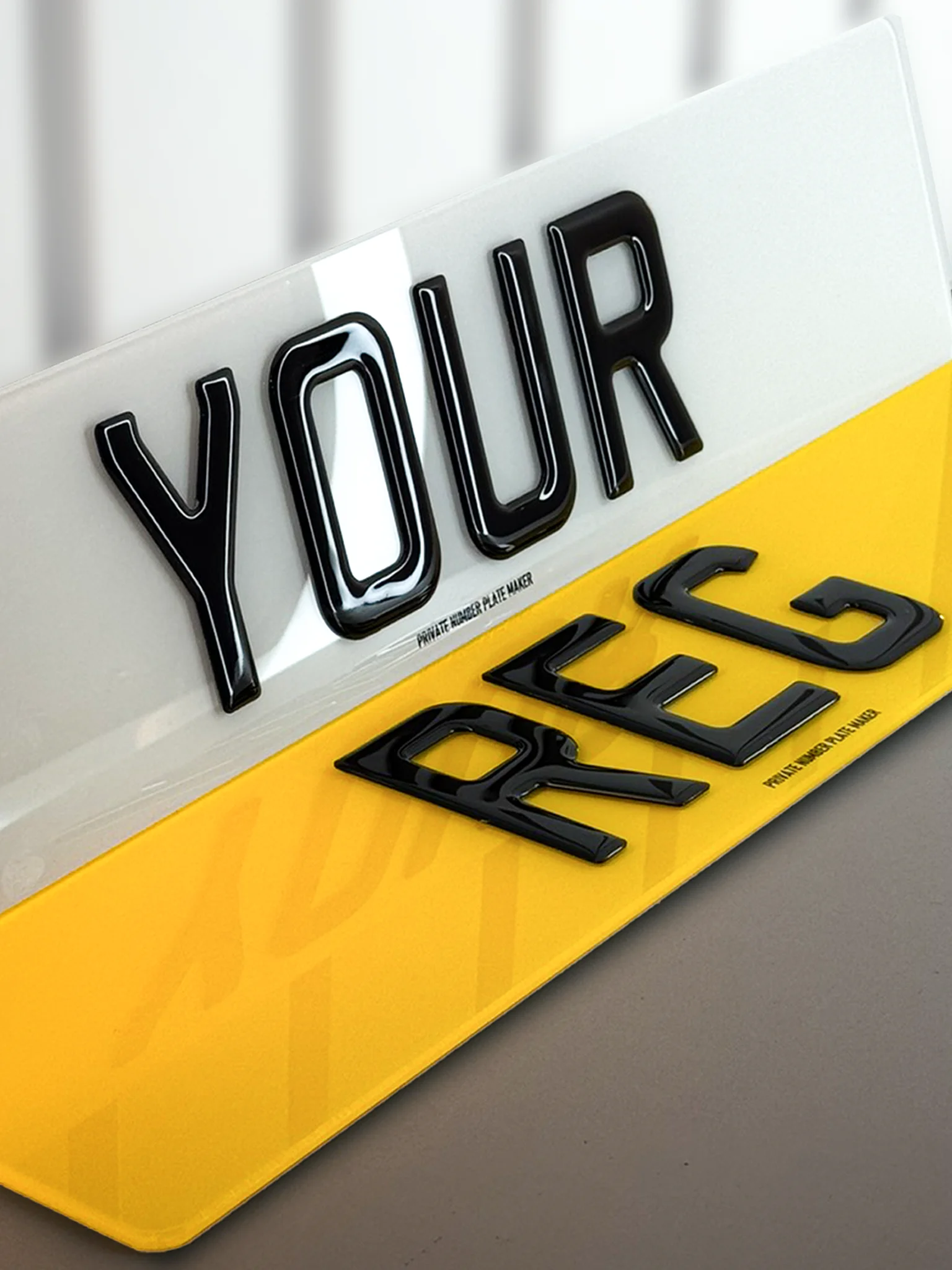 3D Plate
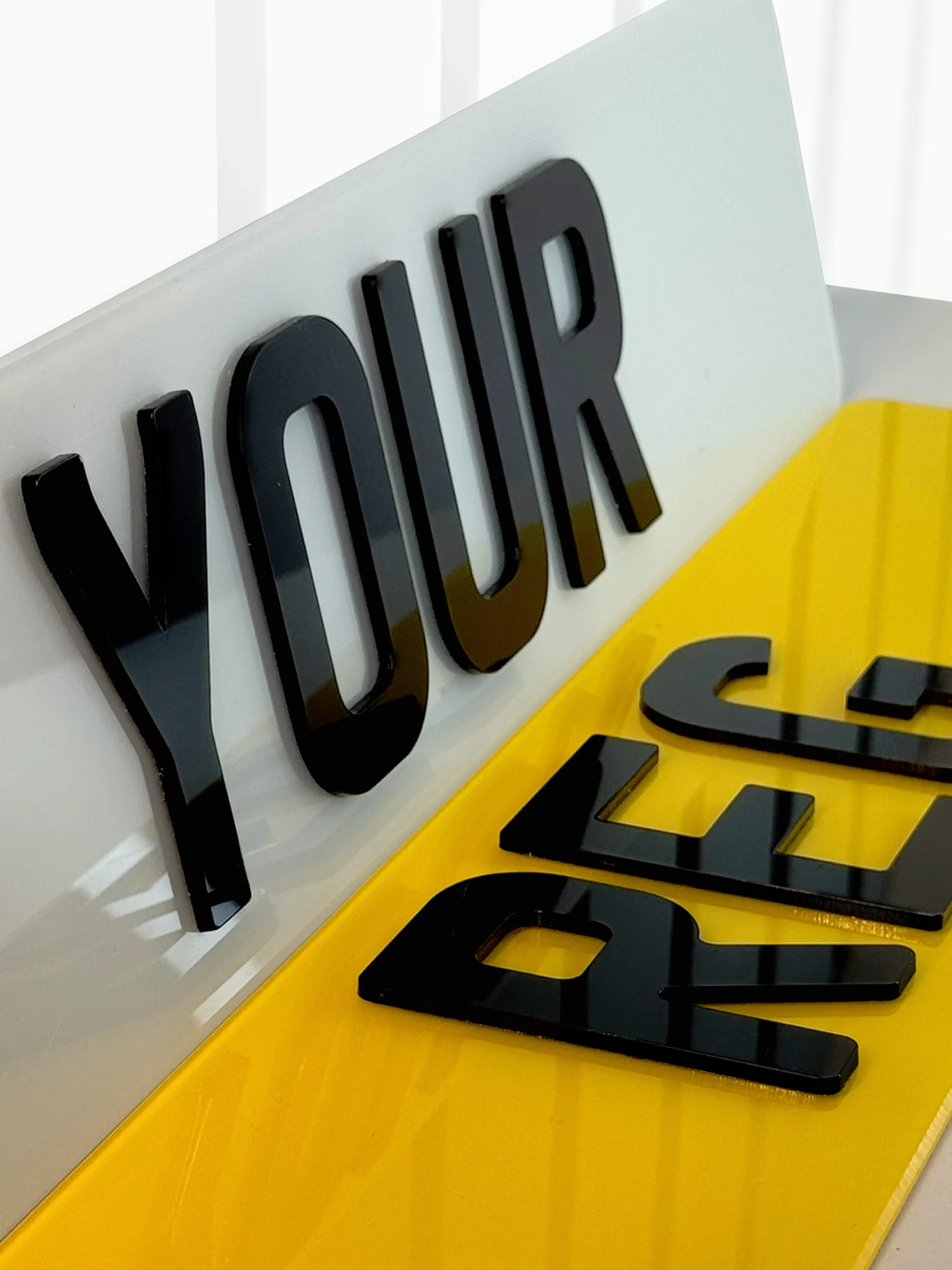 4D Plate
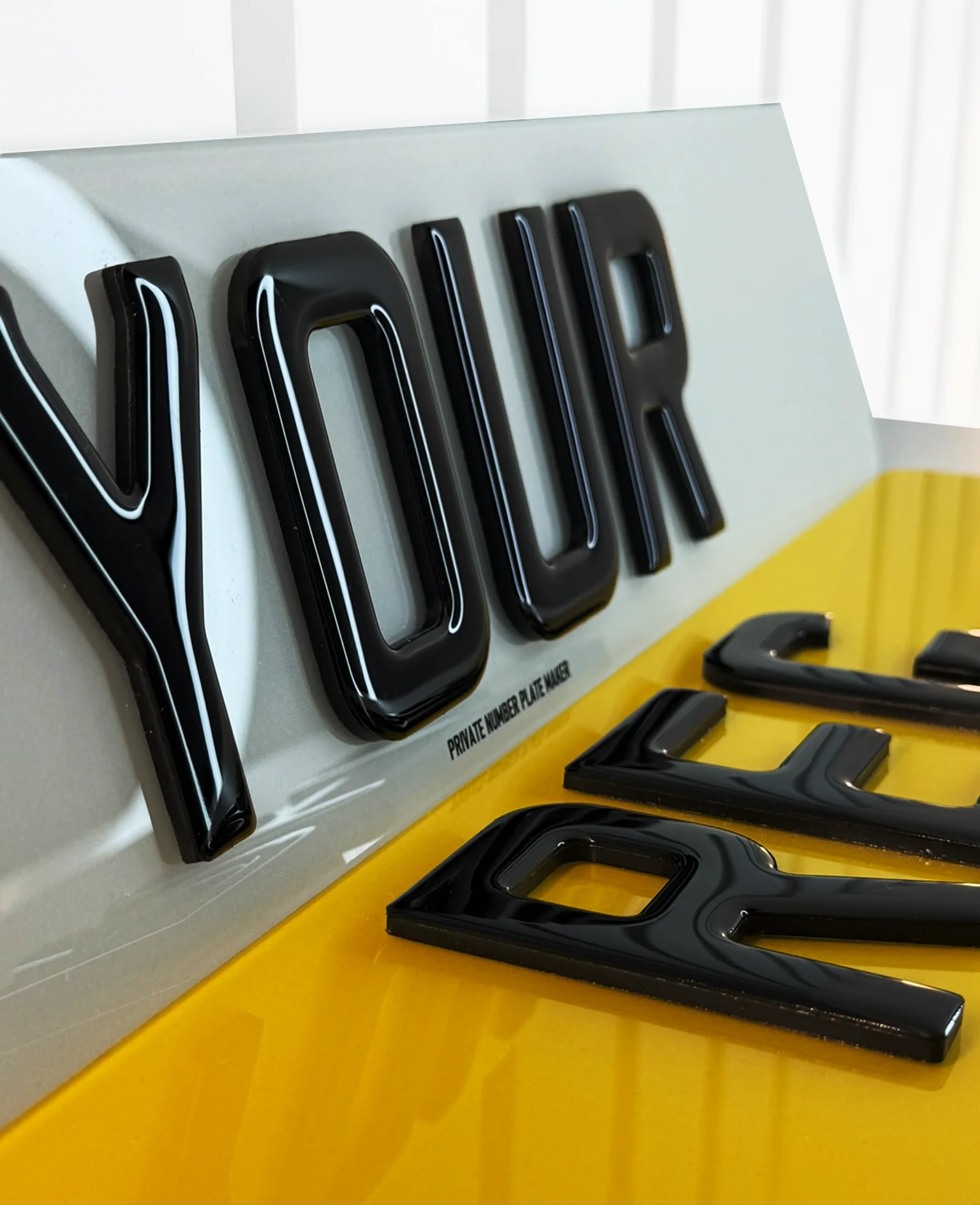 5D Plate
 Ghost
Ghost Bevel
BevelHow to Photograph Your Documents for Fast Verification

Summary
Photographing your DVLA documents correctly is the fastest way to get your number plate order verified, with clear photos typically processed within 1-4 hours compared to 1-2 days for poor quality submissions. The key requirements are simple: use your phone's rear camera, ensure even natural lighting, capture all four corners of the document, and make sure all text is clearly readable without glare or shadows.
Common mistakes that cause verification delays include blurry images, cut-off corners, glare from flash photography, shadows obscuring security features, and submitting screenshots instead of original document photos. Every DVLA-registered number plate supplier (RNPS) must verify your documents before manufacturing plates, as required by the Road Vehicles (Display of Registration Marks) Regulations 2001.
Related guide: DVLA document requirements Guide | V5C vs V750 vs V778 comparison Guide
Why Document Photo Quality Matters for Verification
Document photo quality directly impacts how quickly your number plate order can be processed and verified.
Legal Requirements for Document Verification
RNPS Obligations:
- All DVLA-registered suppliers must verify documents before manufacturing
- Road Vehicles Regulations 2001 Schedule 2 specifies required documents
- Records must be maintained for DVLA inspection
- Non-compliance risks RNPS registration removal
Verification Standards:
- Security features must be visible and verifiable
- All text must be legible for record-keeping
- Document authenticity must be confirmable
- Name and address details must be clear
Quality Impact:
- Clear photos: 1-4 hour verification typical
- Poor photos: 1-2 day delays while requesting resubmission
- Unverifiable photos: Order cannot proceed
- Multiple resubmissions: May require in-person verification
What Verifiers Need to See
Essential Elements:
- Full document visible (all four corners)
- Document reference numbers clear
- Name and address legible
- Security features visible
- No obstructions or glare
Security Features on DVLA Documents:
- Watermarks (hold to light or check in photo)
- Holographic elements
- Unique document reference numbers
- DVLA official branding
- Paper quality and texture indicators
Information That Must Be Readable:
- Registration number (for V5C)
- Certificate number (for V750/V778)
- Registered keeper/grantee name
- Document issue and expiry dates
- DVLA official stamps or marks
Equipment and Setup for Best Results
Using the right equipment and setup significantly improves your document photo quality.
Recommended Equipment
| Item | Recommendation | Why It Matters |
|---|---|---|
| Camera | Phone rear camera (not front) | Higher resolution, better focus |
| Lighting | Natural daylight or bright room light | Even illumination, no harsh shadows |
| Surface | Plain white or light-coloured flat surface | Contrast, no distracting backgrounds |
| Support | Table or flat surface (not hand-held) | Prevents camera shake and blur |
| Cleaning cloth | Microfiber or lint-free | Remove dust from document surface |
What NOT to Use
| Item | Problem | Alternative |
|---|---|---|
| Front-facing camera | Lower resolution, poor focus | Use rear camera |
| Camera flash | Creates glare on document surface | Use ambient light instead |
| Hand-held shooting | Camera shake causes blur | Rest phone on table or use stand |
| Dark backgrounds | Poor contrast, hard to see edges | Use white or light surface |
| Screenshot apps | Cannot verify authenticity | Photograph original document |
Optimal Shooting Environment
Lighting Conditions:
- Natural daylight near window (ideal)
- Bright room with overhead lights
- Avoid direct sunlight (causes glare)
- No shadows across document
Background Setup:
- Clean, flat surface
- White or light-coloured preferred
- Remove clutter from frame
- Ensure document lies completely flat
Camera Position:
- Directly above document (90-degree angle)
- Close enough to fill frame with document
- Leave small margin around all edges
- Keep camera steady during capture
Step-by-Step Guide to Photographing DVLA Documents
Follow these detailed steps for verification-ready document photos.
Step 1: Prepare Your Document
Document Preparation:
- Remove document from any protective sleeves
- Lay flat on clean, light-coloured surface
- Smooth out any creases or folds gently
- Wipe surface with dry cloth to remove dust
Document Positioning:
- Position document in centre of frame
- Ensure all four corners are visible
- Align document edges with frame edges (optional)
- Leave small margin around all sides
What to Check:
- Document is not expired
- All pages accessible (for multi-page V5C)
- No obstructions on document surface
- Security features not covered
Step 2: Set Up Your Camera
Camera Settings:
- Open camera app on your phone
- Switch to rear camera (not front/selfie)
- Tap screen to focus on document text
- Ensure flash is turned OFF
Focus and Exposure:
- Tap on text area to set focus point
- Wait for focus indicator (usually yellow box)
- Adjust exposure if image too dark/bright
- Lock focus if your phone allows
Stability:
- Rest elbows on table for stability
- Or prop phone against stable object
- Use timer if available (2-second delay)
- Hold breath when capturing
Step 3: Capture the Image
Taking the Photo:
- Position camera directly above document
- Ensure all four corners visible in frame
- Check for shadows or glare on screen
- Capture image when ready
Review the Image:
- Zoom in to check text clarity
- Verify all corners are visible
- Check for any glare or reflections
- Confirm security features visible
Multiple Shots:
- Take 2-3 photos of each document
- Vary angle slightly between shots
- Select best image for upload
- Keep backups in case needed
Step 4: Upload Your Photos
Upload Process:
- Access secure upload portal
- Select correct document type
- Choose clearest photo from your shots
- Confirm upload complete
File Requirements:
- Format: JPG or PNG typically accepted
- Size: Usually under 10MB per file
- Quality: High resolution preferred
- Multiple pages: Upload each separately
Confirmation:
- Save upload confirmation reference
- Note expected verification timeframe
- Keep original documents accessible
- Monitor email for verification updates
Related guide: Same-day number plates Ilford Guide | Delivery times Guide
Good vs Bad Photo Examples
Visual examples help you understand exactly what verifiers need to see.
GOOD Photo Characteristics
| Feature | What It Looks Like | Why It Works |
|---|---|---|
| Lighting | Even, natural light across entire document | No shadows obscuring text |
| Focus | All text sharp and clearly readable | Verifier can read all details |
| Corners | All four corners visible in frame | Confirms complete document |
| Glare | No reflections or hot spots | Security features visible |
| Angle | Directly above, document flat | No distortion of text or features |
| Background | Plain, light-coloured surface | Document edges clearly defined |
Example Description - Good V5C Photo:
- Blue V5C document centred in frame
- All text clearly readable including registration number
- Document reference number visible at top
- All four corners within image frame
- Even lighting with no shadows or glare
- Plain white background surface
BAD Photo Characteristics
| Feature | What It Looks Like | Why It Fails |
|---|---|---|
| Lighting | Dark areas, heavy shadows | Text cannot be read |
| Focus | Blurry, text not sharp | Details unverifiable |
| Corners | One or more corners cut off | Document may be incomplete |
| Glare | White reflection spots | Security features hidden |
| Angle | Document at angle, distorted | Text appears skewed |
| Background | Dark or cluttered | Document edges unclear |
Example Description - Bad V5C Photo:
- Document partially cut off at edges
- Flash glare obscures centre section
- Shadow from hand visible across text
- Blurry - cannot read registration number
- Document at angle, not flat
- Dark background makes edges hard to see
Common Document-Specific Issues
V5C Logbook:
Good: All sections visible, registration number clear
Bad: Multi-page V5C with missing pages
V750 Certificate:
Good: Certificate number and expiry date readable
Bad: Glare on holographic security features
V778 Retention Document:
Good: Grantee name and registration clear
Bad: Document folded, text obscured in crease
Driving Licence/Passport:
Good: Photo, name, and expiry date visible
Bad: Glare on photo or chip area
Common Mistakes That Cause Verification Delays
Understanding common errors helps you avoid verification delays.
Mistake 1: Using Camera Flash
Problem: Flash creates bright white glare on document surface. Glare obscures text and security features. Makes document appear altered or suspicious.
Solution: Turn flash OFF before photographing. Use ambient room lighting instead. Position near window for natural light. Add additional lamps if needed (no direct flash).
Mistake 2: Cutting Off Document Corners
Problem: Verifiers cannot confirm complete document. May indicate document has been altered. Security features often at corners.
Solution: Step back slightly or use wider angle. Ensure small margin around all edges. Check all four corners before uploading. Retake if any corner is cut off.
Mistake 3: Blurry or Out-of-Focus Images
Problem: Text cannot be read for verification. Security features not visible. Appears unprofessional, may be flagged.
Solution: Tap screen to set focus point on text. Wait for focus confirmation before capturing. Rest phone on stable surface. Use rear camera (better focus than front).
Mistake 4: Shadows Across Document
Problem: Shadows obscure important text. Makes document appear altered. Security features hidden in shadow.
Solution: Position light source above document. Move your hand/body out of light path. Use multiple light sources for even coverage. Check for shadows before capturing.
Mistake 5: Submitting Screenshots Instead of Photos
Problem: Screenshots cannot verify document authenticity. Security features not captured. Against RNPS verification requirements.
Solution: Always photograph original physical document. Never submit screenshots of digital copies. If document is digital, print first then photograph. Contact supplier if original unavailable.
Mistake 6: Document Not Flat
Problem: Folded or curved document distorts text. Some areas out of focus. Appears careless, may delay verification.
Solution: Lay document completely flat on surface. Smooth out any creases gently. Use book weights at corners if needed (not covering text). Ensure no curling at edges.
Document-Specific Photography Tips
Different DVLA documents have specific features that need special attention.
V5C Registration Certificate (Logbook)
Key Areas to Capture:
- Vehicle registration number (top section)
- Registered keeper name and address
- Document reference number (top right)
- DVLA watermark/security features
- All pages if multi-section V5C
Special Considerations:
- V5C is multi-page - photograph all relevant sections
- Red (older) and blue (current) versions both acceptable
- Ensure keeper details match your ID document
- Check for any amendments or stamps
Common Issues:
- Glare on laminated sections
- Small print in technical sections
- Fold creases obscuring text
- Worn edges on older documents
V750 Certificate of Entitlement
Key Areas to Capture:
- Certificate reference number
- Private registration number
- Purchaser/grantee name
- Issue and expiry dates
- DVLA security features
Special Considerations:
- Green/pink document with security features
- 12-month validity period must be visible
- Ensure certificate not expired
- Holographic elements should be visible
Common Issues:
- Glare on security holograms
- Expiry date hard to read
- Certificate number partially obscured
- Colour reproduction in photos
V778 Retention Document
Key Areas to Capture:
- Document reference number
- Retained registration number
- Grantee name and details
- Expiry and renewal dates
- DVLA official branding
Special Considerations:
- Pink/orange document colour
- 12-month validity (renewable)
- Must be current (not expired)
- Security features similar to V750
Common Issues:
- Document often folded (creases obscure text)
- Renewal stamps may be faint
- Similar glare issues to V750
- Older versions may be faded
Identity Documents (Driving Licence/Passport)
Key Areas to Capture:
- Full name (must match entitlement document)
- Photograph (for identity verification)
- Expiry date (must be current)
- Document number
- Issue date if visible
Special Considerations:
- Must be current (not expired)
- Both sides of driving licence may be needed
- Passport photo page only (not entire passport)
- EEA documents accepted with additional verification
Common Issues:
- Glare on photo/chip area
- Holographic features create reflections
- Small print hard to capture clearly
- Card curvature causes focus issues
Related guide: DVLA document requirements Guide | Number plate fines UK Guide
Technical Specifications for Uploads
Understanding technical requirements ensures your photos are accepted by upload systems.
File Format Requirements
| Specification | Requirement | Why It Matters |
|---|---|---|
| File Format | JPG or PNG | Universal compatibility |
| File Size | Typically under 10MB | System upload limits |
| Resolution | Minimum 1920x1080 pixels | Text must be readable |
| Colour | Colour photos required | Security features visible |
| Orientation | Correct orientation (not upside down) | Easy verification |
Upload System Requirements
Portal Specifications:
- Secure encrypted upload (HTTPS)
- Session timeout (complete upload promptly)
- Multiple file upload capability
- Confirmation receipt provided
Browser Compatibility:
- Modern browsers (Chrome, Firefox, Safari, Edge)
- JavaScript enabled for upload functionality
- Cookies enabled for session management
- Pop-up blockers may interfere
Mobile Considerations:
- Mobile upload portals available
- May need to switch to desktop view
- File size limits may differ
- Camera access permissions required
File Management Tips
Before Upload:
- Rename files clearly (e.g., "V5C_Front.jpg")
- Select best image from multiple shots
- Check file size before upload
- Ensure correct orientation
After Upload:
- Save confirmation reference
- Note expected verification timeframe
- Keep original photos as backup
- Monitor email for verification updates
Troubleshooting:
- Clear browser cache if upload fails
- Try different browser if issues persist
- Reduce file size if too large
- Contact support for technical issues
Verification Timeline and What Happens Next
Understanding the verification process helps set realistic expectations.
Typical Verification Timeline
| Photo Quality | Verification Time | Next Steps |
|---|---|---|
| Excellent | 1-2 hours | Order proceeds to manufacturing |
| Good | 2-4 hours | Standard processing time |
| Acceptable | 4-8 hours | May require additional check |
| Poor | 1-2 days | Resubmission requested |
| Unverifiable | Order paused | In-person verification may be needed |
Verification Process Steps
Step 1: Upload Received
- Automated confirmation sent
- Document queued for review
- Reference number assigned
- Timestamp recorded
Step 2: Initial Review
- Photo quality assessed
- Document type confirmed
- Basic information checked
- Flagged if issues found
Step 3: Detailed Verification
- Security features examined
- Information cross-referenced
- Name/address verified against ID
- Entitlement confirmed
Step 4: Decision
- Approved: Order proceeds to manufacturing
- Query: Additional information requested
- Rejected: Explanation provided, resubmit required
- Escalated: Senior verification needed
What Happens After Verification
If Approved:
- Email confirmation sent
- Order moves to manufacturing queue
- Expected completion time provided
- Tracking information when dispatched
If Additional Information Needed:
- Email explains what is required
- Clear instructions for resubmission
- Deadline for response provided
- Order held pending information
If Rejected:
- Reason for rejection explained
- Guidance on correct documentation
- Option to resubmit or visit workshop
- No charge for resubmission
Our Verification Process at Private Number Plate Maker Ltd
As a DVLA-registered manufacturer (RNPS ID: 75449), we maintain strict verification standards at our Ilford workshop.
Our Upload System
Secure Portal:
- Encrypted document upload (HTTPS)
- Files stored securely per data protection requirements
- Access restricted to authorised verification staff
- Automatic deletion after retention period
Upload Options:
- Online portal via website
- Email upload with encryption
- In-person presentation at workshop
- Mobile-optimized upload interface
Support Available:
- Phone support for upload issues
- Email guidance on requirements
- Live chat during business hours
- Workshop visit for complex cases
In-Person Verification at Our Workshop
Workshop Location:
- Castleview Gardens, Ilford, East London
- No photo needed - original documents presented
- Immediate verification (5-15 minutes)
- Plates manufactured while you wait
What to Bring:
- Original identity document (driving licence or passport)
- Original entitlement document (V5C, V750, or V778)
- Any supporting documentation if names differ
- Payment method for order settlement
Advantages:
- No photo quality concerns
- Immediate verification and approval
- Same-day collection available
- Face-to-face support for questions
Quality Standards We Maintain
Verification Checklist:
- Document authenticity confirmed
- All security features verified
- Name and address cross-checked
- Entitlement to registration confirmed
- Records created for compliance audit
Data Protection:
- GDPR compliant storage
- Limited staff access
- Defined retention periods
- Secure deletion protocols
Customer Communication:
- Clear upload requirements provided
- Prompt notification of any issues
- Support for resubmission if needed
- Transparent about verification timeline
Local Service Coverage
East London Areas:
- Ilford (workshop location)
- Barking, Romford, Dagenham
- Greater London accessible
- UK-wide online service
Collection Options:
- Same-day collection from Ilford
- Appointment booking available
- No delivery wait time
- Quality verified before leaving
Related guide: Same-day number plates Ilford Guide | Delivery times Guide
Frequently Asked Questions
Use your phone's rear camera (not front-facing), position the document flat on a white or light surface, and shoot in natural daylight with flash turned OFF. Ensure all four corners are visible, tap to focus on text areas, and verify the registration number, document reference number, and keeper details are clearly readable. Avoid shadows, glare, and hand-held shooting. Clear photos are typically verified within 1-4 hours, while poor quality images can delay verification by 1-2 days.
Good photos show even natural lighting across the entire document with all text sharp and readable, all four corners visible, no glare or reflections, and the document positioned flat on a plain light background. Bad photos have dark shadows obscuring text, blurry or out-of-focus areas, cut-off corners, flash glare hiding security features, documents at angles causing distortion, or dark/cluttered backgrounds.
Excellent quality photos are typically verified within 1-2 hours, good photos within 2-4 hours, and acceptable photos within 4-8 hours. Poor quality photos that require resubmission can delay verification by 1-2 days, while unverifiable photos may pause your order entirely and require in-person verification.
Yes, scanners often produce superior results to phone cameras with higher resolution, even lighting across the document, no glare or shadow issues, and guaranteed flat document positioning. Save scans as JPG or PNG files under 10MB, ensuring all text and security features are clearly visible. However, you must scan the original physical document - screenshots or digital copies cannot verify authenticity and will be rejected by RNPS suppliers.
First, check your email for any requests for additional information or resubmission. Common delays include poor photo quality, name mismatches between documents, missing pages, or expired documents. If no communication was received, contact the supplier with your order reference number for a status update. Peak periods may cause longer processing times. If urgent, consider visiting the workshop in person for immediate verification.
This guide references the following official and verified sources:
Road Vehicles (Display of Registration Marks) Regulations 2001 (SI 2001/561)
www.legislation.gov.ukDVLA Official Guidance - Registered Number Plate Supplier Requirements
www.gov.ukDVLA Official Guidance - Vehicle Registration Certificates (V5C)
www.gov.ukDVLA Official Guidance - V750 Certificate of Entitlement
www.gov.ukDVLA Official Guidance - V778 Retention Document
www.gov.ukUK Data Protection Act 2018 / GDPR
ico.org.ukBritish Number Plate Manufacturers Association (BNMA) - Verification Guidelines
www.bnma.org